Help centre · Check Consent Mode in GA4
Check that Consent Mode is working in GA4
Four ways to confirm that Google Consent Mode v2 reaches your GA4 property, each with real screenshots: GA4 Admin, your browser, Tag Assistant and Velo.
Four places to look
Consent Mode is working when every request your Google tag sends to Google Analytics carries the visitor’s consent state. Where consent is required, that state is denied until the visitor chooses, and it follows their choice from then on. You can see it in four places, and none of them needs a developer.
| Where | What it shows | How soon |
|---|---|---|
| Your GA4 property | Whether Google is receiving consent signals from your site | Slowly. Google says its notices can take 48 to 72 hours to update. |
| Your browser | The consent state on each request, as it leaves the page | At once |
| Tag Assistant | The default, the update and the current state your Google tag was given | At once |
| Velo | Whether the default was set before your Google tags ran | At once in debug mode, and after every scan |
Velo’s part is to set the default before any Google tag runs and to send the update when the visitor chooses. Adding that state to each request is Google’s part, and so is everything GA4 and Tag Assistant show. Google can change those screens at any time.
Look in your GA4 property
GA4 has one screen for this. It reports what the property has received from your site, so it is the slowest of the four checks.
- In Google Analytics, open Admin.
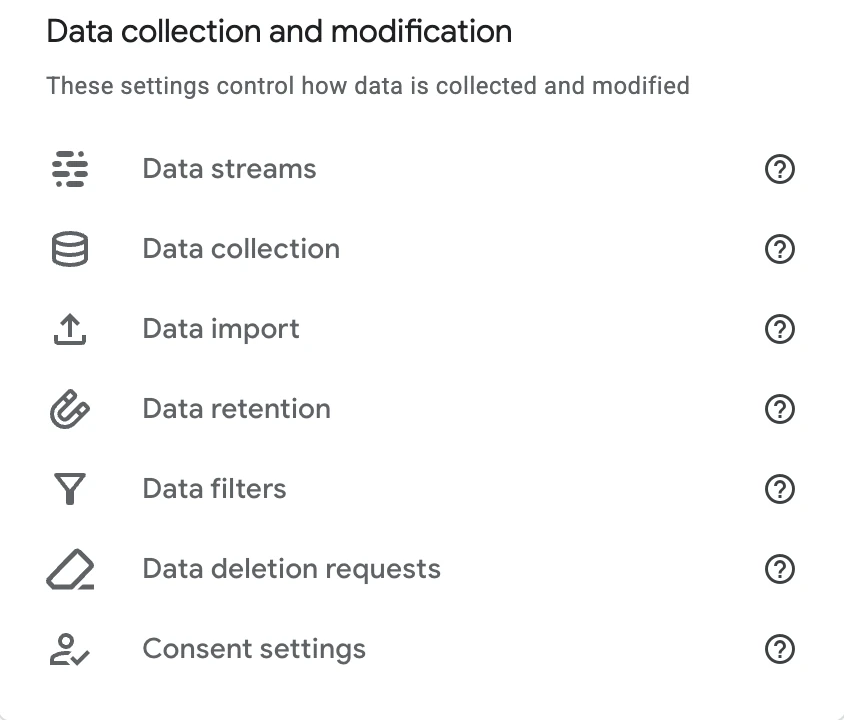
- Under Data collection and modification, click Consent settings.
- Under Select a data stream, choose your website’s stream. The line under its rating should read Consent signals are active on this stream.
- Open Behavioural analytics consent signals. Its row for
analytics_storageshould read Analytics cookie consent signals active. - Open Advertising consent signals. It has one row each for
ad_storage,ad_user_dataandad_personalization, and each one should say that its signals are active.
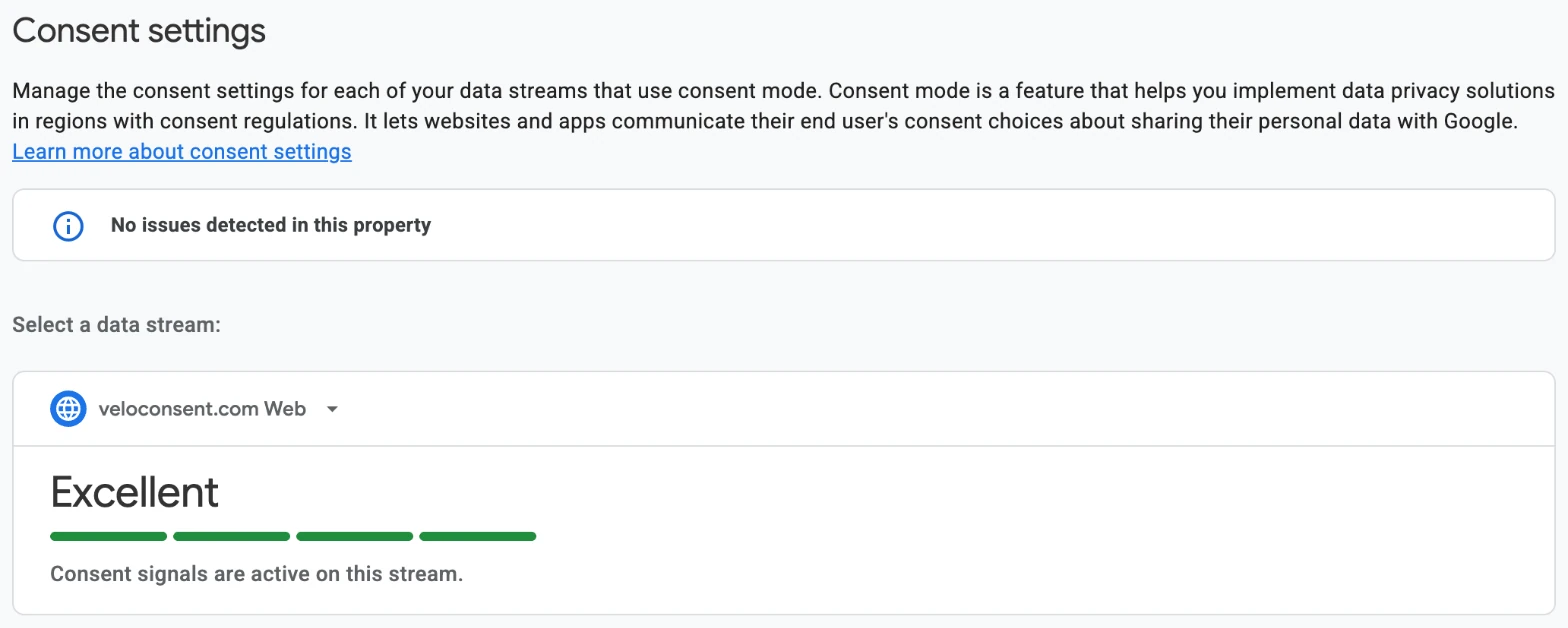
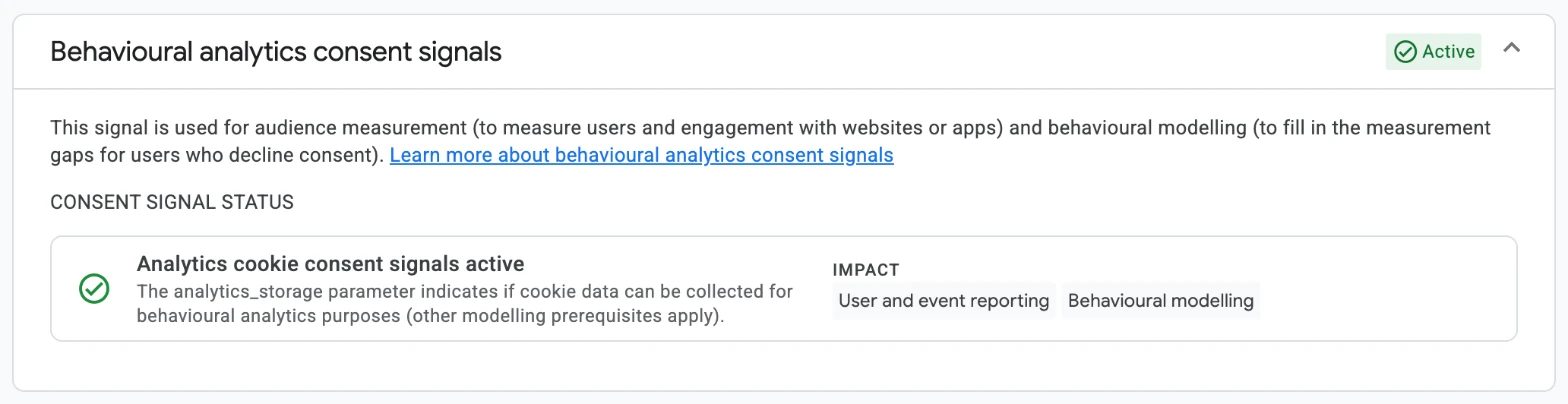
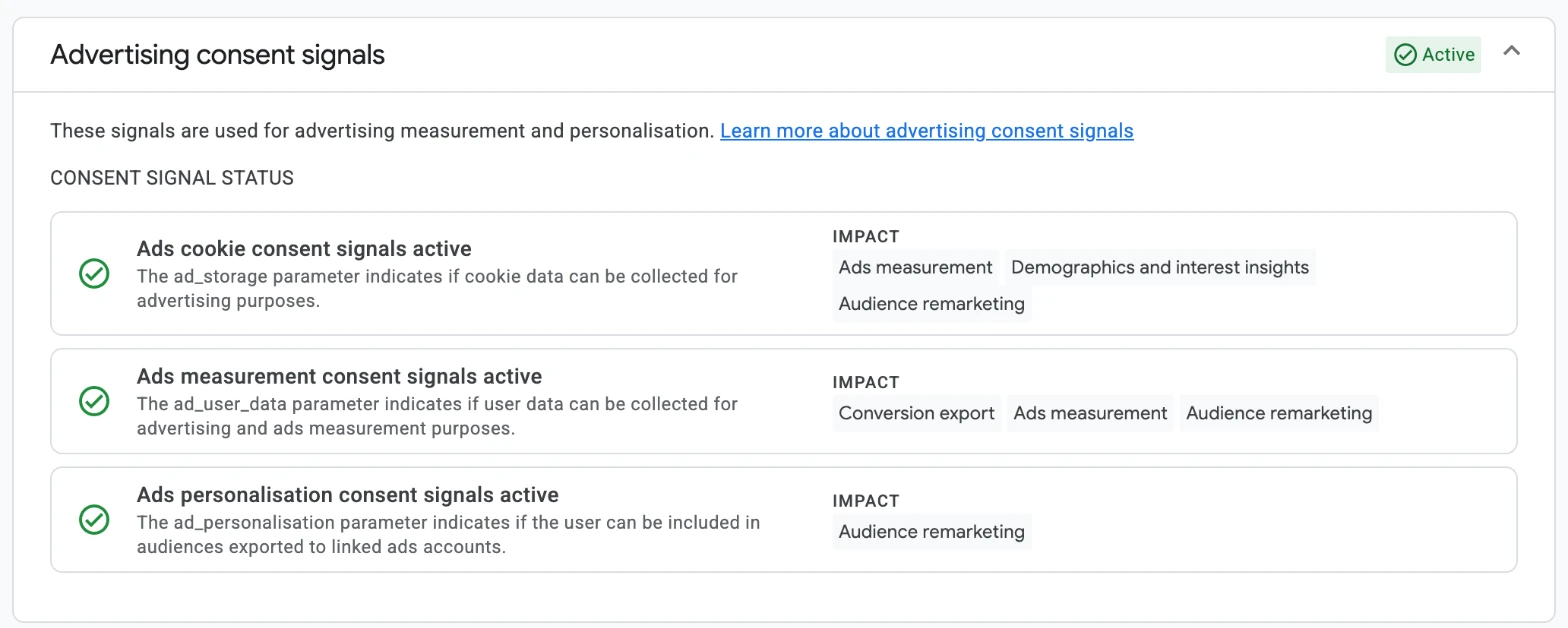
On veloconsent.com the screen showed the rating Excellent, the notice No issues detected in this property and Active next to both groups of signals. That is the only state we saw, so we cannot show you what GA4 displays when a signal is missing.
Google says the notices on this screen can take 48 to 72 hours to update, in Verify and update consent settings. Look at it a few days after you go live to confirm the signals keep arriving, and use the next three checks for an answer today.
Read the request your site sends
This is the quickest proof, and it works on any site. Your Google tag writes the consent state it ran with into every request, in two values named gcs and gcd. Google names both in its consent mode reference. The steps below use Chrome.
- Open your published site in a private window, so no earlier choice is stored. Leave the banner alone for now.
- Right-click the page, choose Inspect and open the Network tab.
- Type
collectin the Filter box and reload the page. - Click the request whose name starts with
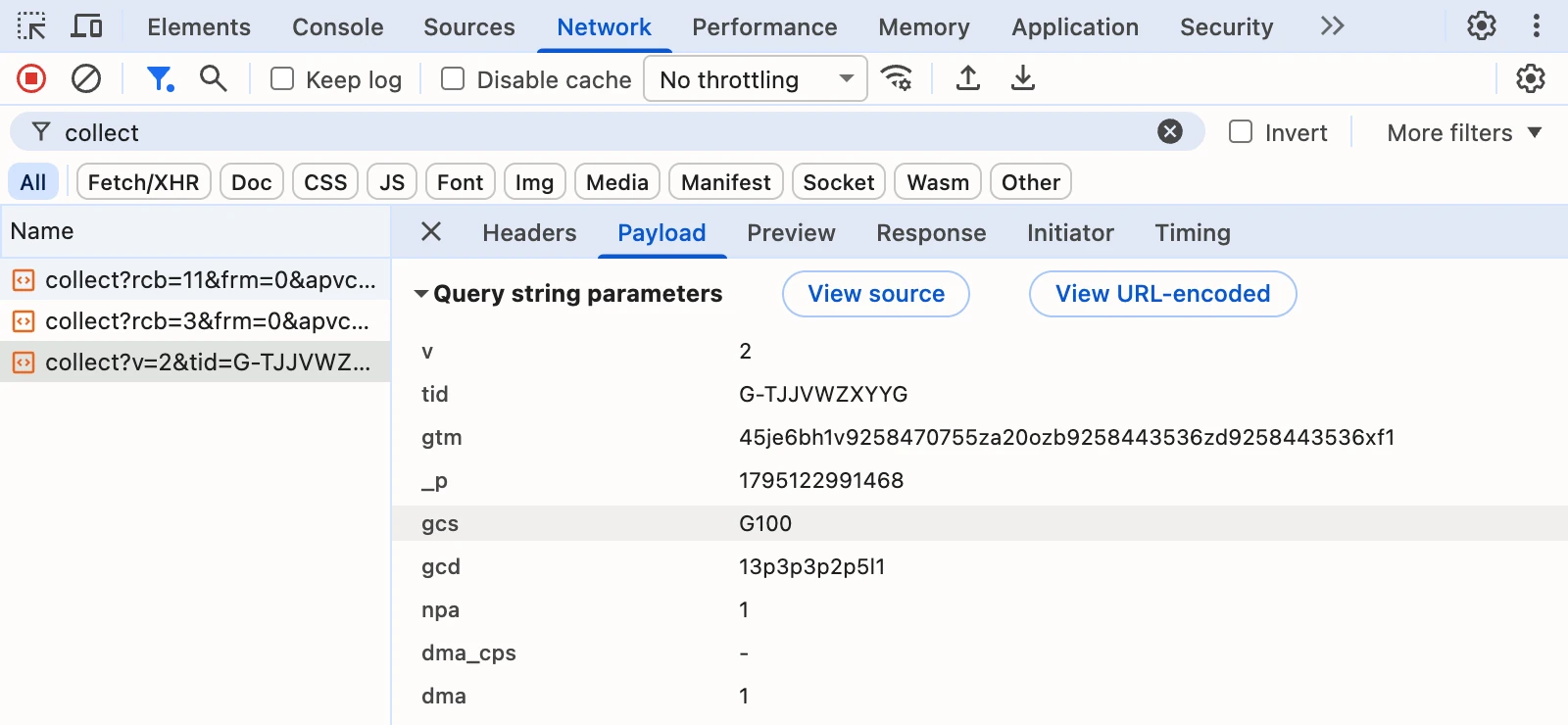
collect?v=2&tid=G-. The letters and digits afterG-are your measurement ID, so this is the page view on its way to Google Analytics. - Open Payload and find
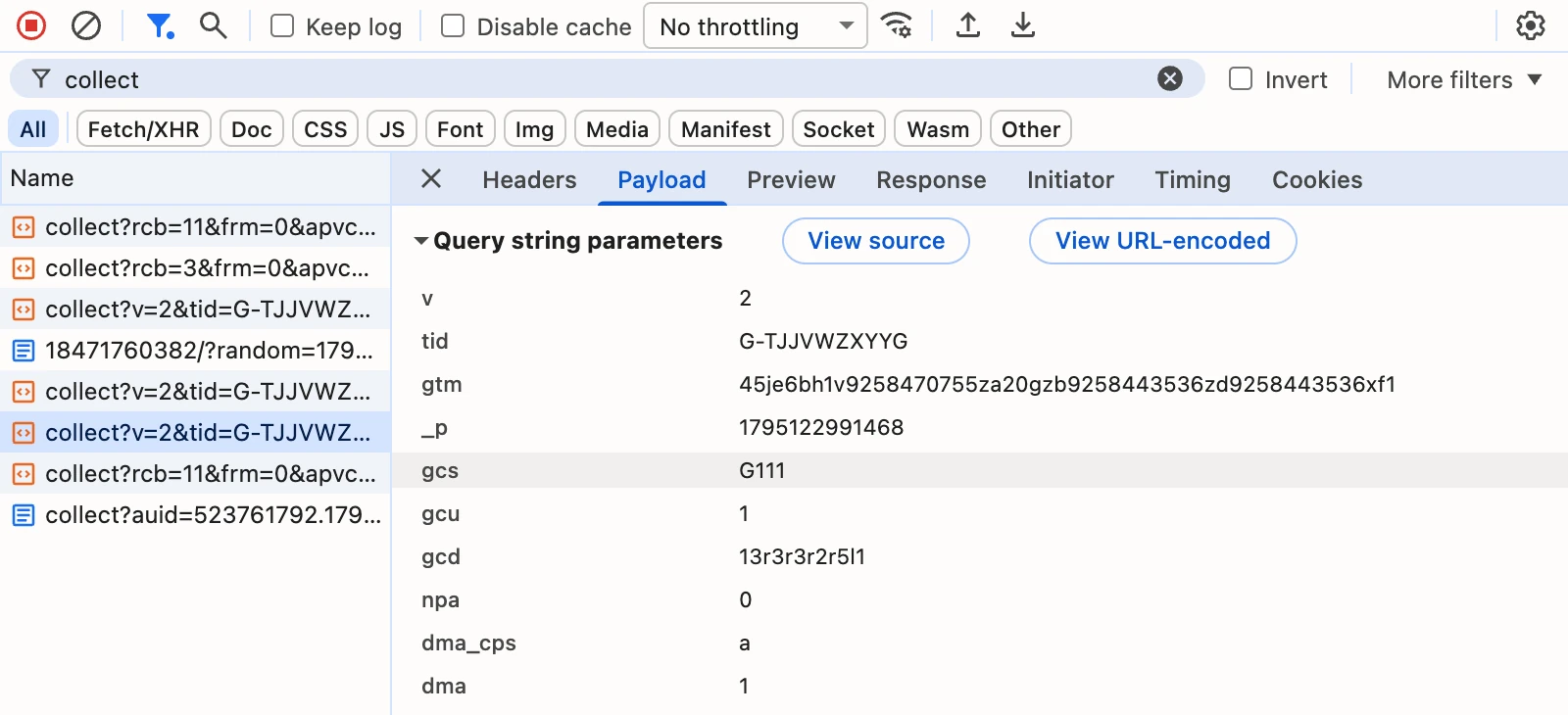
gcsandgcdunder Query string parameters. - Click Accept all in the banner. New requests join the list. Open the newest one that starts with
collect?v=2and read the two values again.
What the values mean
These are the values veloconsent.com sent in our test.
| Visitor | gcs | gcd |
|---|---|---|
| Has not chosen yet | G100 | 13p3p3p2p5l1 |
| Rejects everything | G100 | 13q3q3q2q5l1 |
| Allows analytics only | G101 | 13q3r3q2q5l1 |
| Allows advertising only | G110 | 13r3q3r2r5l1 |
| Accepts everything | G111 | 13r3r3r2r5l1 |
gcs covers two signals. After G1, the first digit is ad_storage and the second is analytics_storage: 1 means granted and 0 means denied. For Google Analytics, the last digit is the one to watch.
gcd covers all four signals. Read its first four letters and skip the digits between them. They stand for ad_storage, analytics_storage, ad_user_data and ad_personalization, in that order. p means denied by the default with no choice yet, q means denied by the default and by the choice, and r means denied by the default, then granted by the choice. The Consent Mode v2 guide lists every letter. Google does not publish the format, so use gcd to find out where to look and confirm what you found in Tag Assistant.
After Accept all, Google Analytics sent the page view again with gcs=G111 and gcu=1, which marks a consent update. After a rejection, nothing new was sent on that page, and the next page view carried G100 with the letter q.
These requests normally go to a Google domain. Ours go to veloconsent.com because the site uses Google tag gateway, and with server-side tagging they go to your own server. You read the values the same way.
See the consent state in Tag Assistant
Tag Assistant is Google’s own debugger. It shows the state your Google tag was given at each moment, for every consent type. It is the check Google recommends in Verify consent mode implementation.
- Open tagassistant.google.com in a private window, so no earlier choice is stored, and sign in to the Google account that can open your Google Analytics property. Without that access, Tag Assistant does not show the tag’s details.
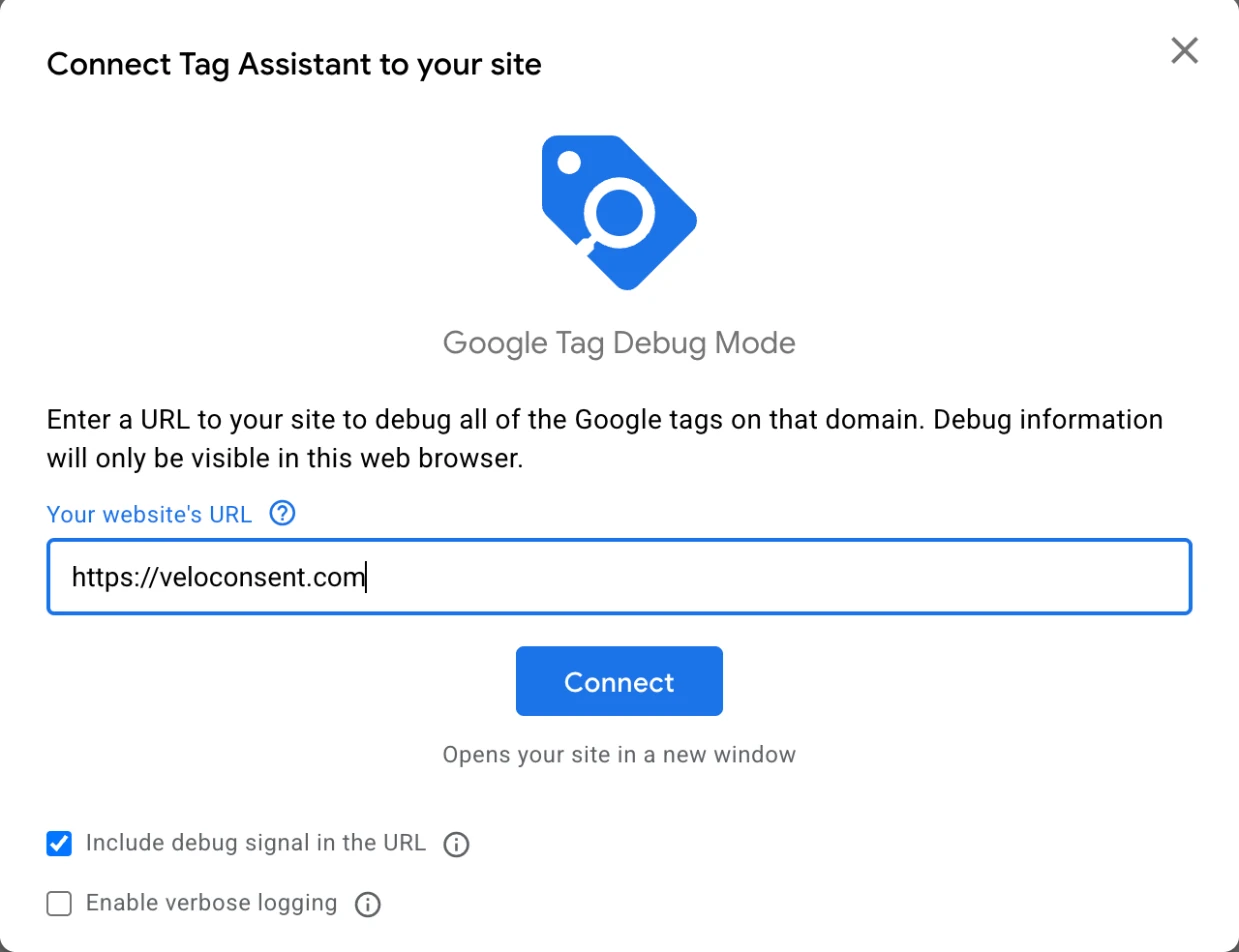
- Click Add domain, enter your site’s address and click Connect. Your site opens in a new window.
- Back in Tag Assistant, click the chip with your measurement ID at the top. It starts with
G-. - Select your page in the list on the left and open the Consent tab. Read the On-page default column before you touch the banner. Where consent is required, the first four rows show Denied.
- On your site, click Accept all. In Tag Assistant, select the page again. On-page update and Current state now show Granted.
- Repeat in a new private window with Reject, and once more with a partial choice from Choose what to allow.
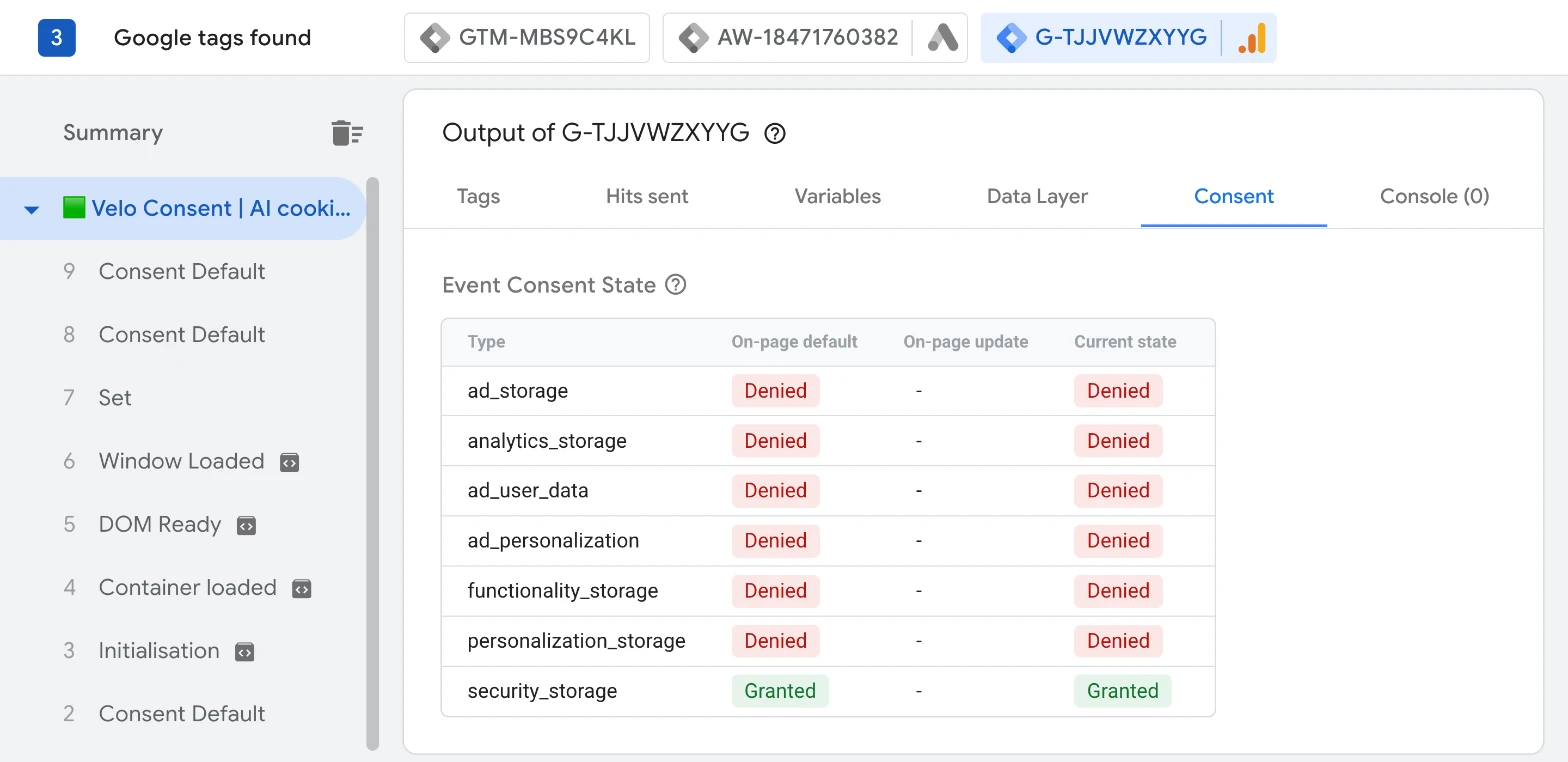
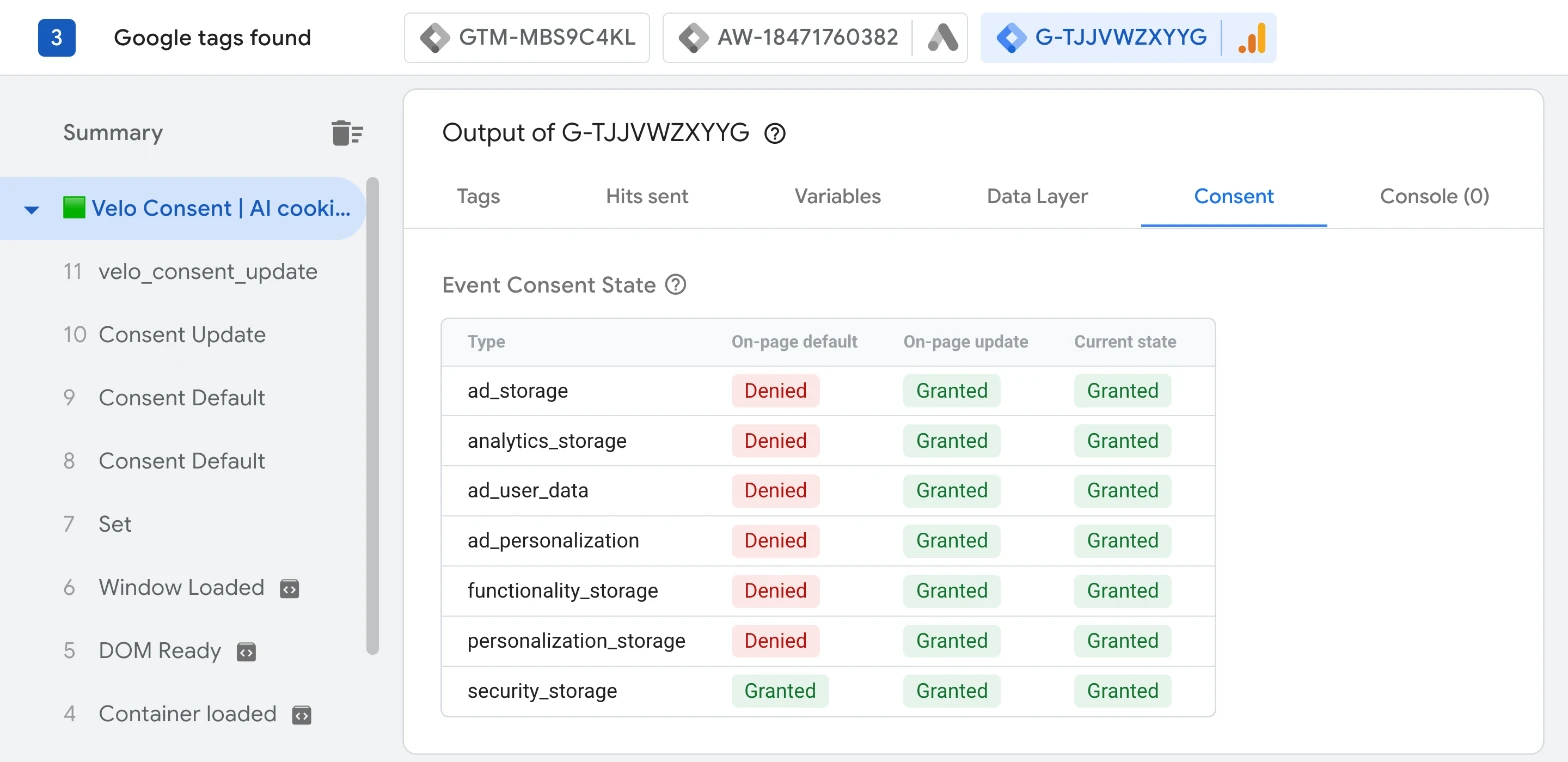
Tag Assistant lists seven consent types, and Google asks you to check the first four. Velo also sets functionality_storage and personalization_storage from its Functional and Personalization categories, and it always grants security_storage.
The list on the left shows each consent command as it arrives: a Consent Default entry for a default and a Consent Update entry after a choice. Select one to see the state at that moment.
Check Velo’s side
Velo has two checks of its own. They show whether Velo did its part, which is to set the default before any Google tag ran. They do not look inside Google Analytics.
Debug mode, on the page
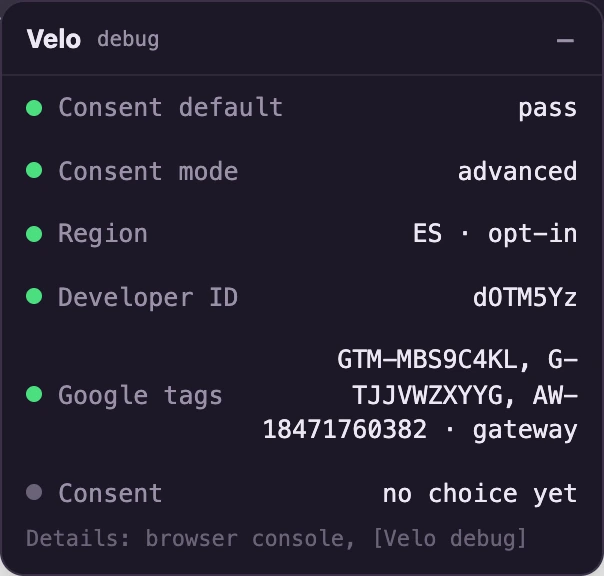
Add ?velo_debug=1 to your page address and load it. A small panel shows what Velo did on that page. Consent default: pass means the default was set before any Google tag, and Region shows whether the visitor is in an opt-in region. The debug mode guide explains every line.
The Scanner, in your workspace
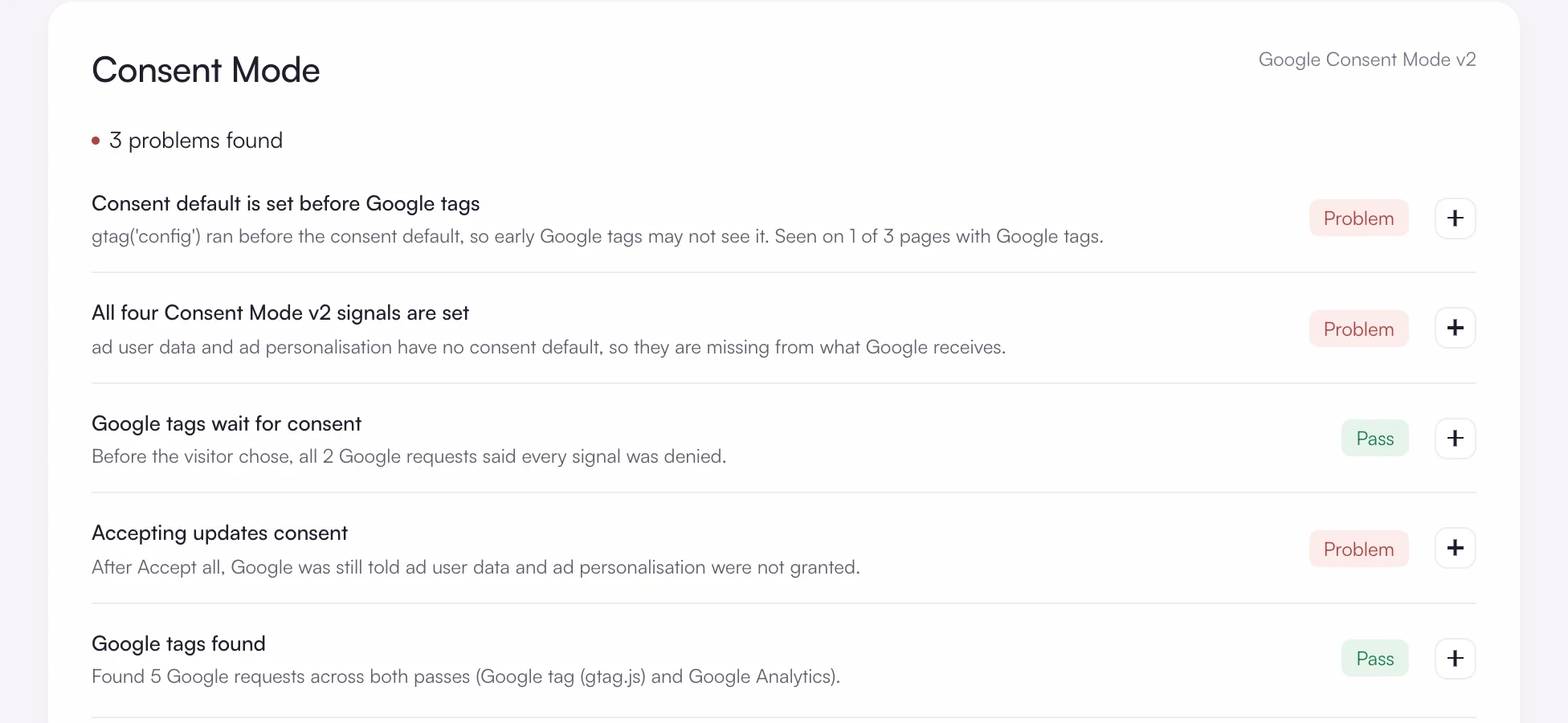
Open Scanner in your Velo workspace and scan your site. Under Consent Mode it runs five checks, among them Consent default is set before Google tags, All four Consent Mode v2 signals are set and Accepting updates consent.
Each check is marked Pass, Problem, Check or Not tested.
What Velo sets before a choice
| Visitor’s region | Signals before a choice |
|---|---|
| EEA, United Kingdom and Switzerland | Denied |
| Brazil, Peru, Colombia and Argentina | Denied |
| United States and other countries | Granted, unless you set them to opt in |
Where the default is granted, a Global Privacy Control signal from the browser still denies the three advertising signals. The regions guide shows where to change the default for a site.
What a wrong result looks like
The signals are granted before any choice, where consent is required.
You see G111 on the first request, or Granted under On-page default. Something else is setting a default: an old consent tool, a default snippet in a Custom HTML tag or a gtag default written into the page. Only one thing may set defaults, so find the other one and remove it. Rule out the region first, though. Where Velo’s default is opt out, granted is the expected start.
Nothing changes after a choice.
gcs stays at G100 after Accept all, or On-page update stays empty. Check that your installation uses your own site ID, look for JavaScript errors and for a second installation, and make sure the choice was saved, not just the panel closed. Google lists this case as “Consent doesn’t update” in Troubleshoot consent mode.
A signal has no default at all.
gcd shows l, m or n in one of its first four places, gcs shows a dash, or Tag Assistant shows no default for a signal. The Google tag ran before the consent default was set. In Tag Manager, fire the Velo CMP tag on Consent Initialization - All Pages, not on a page view trigger. With a direct installation, put Velo above every Google tag. A Google tag loaded before Velo has the steps.
Two tools answer for consent.
You see two banners, or the state differs from one page load to the next. An old consent platform, a second template or the direct snippet next to the Velo CMP tag is still installed. Keep one way of installing Velo and one tool that sets consent, then test again in a new private window.
The Consent tab in Tag Assistant is empty.
Google says this happens when consent mode is not implemented on the page, or when the Google tag was blocked. Check that Velo is published on the page you are testing and that no browser extension blocks the Google tag.
Requests still leave after a rejection.
That is advanced consent mode working as intended. Google tags still load and send cookieless pings that carry the denied state, which is the G100 you see. If nothing may leave before consent, switch to basic consent mode.
GA4 does not show the signals as active.
Give it time first. Google says the notices on that screen can take 48 to 72 hours to update. If the other three checks pass, your site is sending the signals. If they do not, fix what they show and look at GA4 again a few days later.
Other places Google shows consent
Google documents a few more places. We did not test them for this guide, so follow Google’s pages for the details.
- BigQuery export. Each exported event has
privacy_infofields:analytics_storage,ads_storageanduses_transient_token, each with the value Yes, No or Unset. See Google’s BigQuery Export schema. - Estimated data in reports. When a property qualifies for behavioural modelling and uses the Blended reporting identity, the data-quality icon in a report says Including estimated user data. A property needs, among other things, at least 1,000 events a day with
analytics_storagedenied for at least 7 days, and at least 1,000 daily users with it granted for at least 7 of the previous 28 days. Most small sites never reach that, and it does not mean Consent Mode is broken. See Behavioral modeling for consent mode. - Google Ads. If you track website conversions in Google Ads, the Diagnostics tab of a conversion action shows “Consent mode is implemented”. Google says this can take 48 hours to appear, and up to 2 weeks in some cases. See Verify consent mode implementation.
DebugView is not a consent check. Google says events do not show there when consent mode is in place and the visitor has not consented to Analytics cookies. See Monitor events in DebugView.
Still stuck?
Tell us where you got to and we will pick it up from there.